<?xml version="1.0" encoding="utf-8"?><feed xmlns="http://www.w3.org/2005/Atom" ><generator uri="https://jekyllrb.com/" version="3.10.0">Jekyll</generator><link href="https://zmaili.net/feed.xml" rel="self" type="application/atom+xml" /><link href="https://zmaili.net/" rel="alternate" type="text/html" /><updated>2026-05-29T09:53:50+00:00</updated><id>https://zmaili.net/feed.xml</id><title type="html">Mohammad Zmaili</title><subtitle>Helping global enterprises move faster while staying secure and compliant by delivering identity-centric, end-to-end security solutions, enhancing Zero Trust architectures, and securing AI systems responsibly at scale.</subtitle><author><name>Mohammad Zmaili</name></author><entry><title type="html">Understanding Device Registration Join Types: When and Why to Use Each</title><link href="https://zmaili.net/device%20registration/Understanding-Device-Registration-Join-Types_-When-and-Why-to-Use-Each/" rel="alternate" type="text/html" title="Understanding Device Registration Join Types: When and Why to Use Each" /><published>2024-10-23T16:00:00+00:00</published><updated>2024-10-23T16:00:00+00:00</updated><id>https://zmaili.net/device%20registration/Understanding-Device-Registration-Join-Types_-When-and-Why-to-Use-Each</id><content type="html" xml:base="https://zmaili.net/device%20registration/Understanding-Device-Registration-Join-Types_-When-and-Why-to-Use-Each/"><![CDATA[<p><img src="/assets/images/deviceJoinTypes.jpg" alt="Screenshot showing Device Registration Join Types" title="Device Registration Join Types" /> 
<br /><br />
In today’s digital landscape, securing devices and ensuring seamless access to corporate resources is paramount. As an Identity &amp; Security expert, it’s crucial to understand the different device registration join types available and their respective benefits. This knowledge helps in making informed decisions tailored to organizational needs.</p>

<h2 id="1-microsoft-entra-registered">1. Microsoft Entra Registered</h2>
<h3 id="when-to-use">When to Use:</h3>
<ul>
  <li>Ideal for personally owned devices (BYOD - Bring Your Own Device).</li>
  <li>Suitable for scenarios where users need access to corporate resources without full device management.</li>
</ul>

<h3 id="benefits">Benefits:</h3>
<ul>
  <li><strong>Flexibility:</strong> Users can register their personal devices, allowing access to corporate resources while maintaining personal use.</li>
  <li><strong>Security:</strong> Provides a layer of security by enabling conditional access policies and multi-factor authentication (MFA).</li>
  <li><strong>User Experience:</strong> Simplifies the user experience by allowing single sign-on (SSO) to corporate applications.</li>
</ul>

<h3 id="supported-operating-systems">Supported Operating Systems:</h3>
<ul>
  <li>Windows 10 or newer</li>
  <li>MacOS 10.15 or newer</li>
  <li>iOS 15 or newer</li>
  <li>Android</li>
  <li>Linux (Ubuntu 20.04/22.04 LTS, Red Hat Enterprise Linux 8/9 LTS)</li>
</ul>

<h2 id="2-microsoft-entra-joined-recommended-join-type">2. Microsoft Entra Joined (Recommended join type)</h2>
<h3 id="when-to-use-1">When to Use:</h3>
<ul>
  <li>Best for corporate-owned and managed devices.</li>
  <li>Suitable for organizations that are cloud-first or have a significant cloud presence.</li>
</ul>

<h3 id="benefits-1">Benefits:</h3>
<ul>
  <li><strong>Enhanced Security:</strong> Devices are fully managed by the organization, ensuring compliance with security policies.</li>
  <li><strong>Seamless Access:</strong> Users can access both cloud and on-premises resources with their Entra ID credentials.</li>
  <li><strong>Centralized Management:</strong> IT administrators can manage devices centrally through Entra ID, simplifying device management and policy enforcement.</li>
</ul>

<h3 id="supported-operating-systems-1">Supported Operating Systems:</h3>
<ul>
  <li>Windows 10 or newer, except Home edditions</li>
  <li>Windows Server 2012 or newer VMs running on Azure, except Server core.</li>
  <li>MacOS 12 or newer (with Platform SSO)</li>
</ul>

<h2 id="3-microsoft-entra-hybrid-joined">3. Microsoft Entra Hybrid Joined</h2>

<h3 id="when-to-use-2">When to Use:</h3>
<ul>
  <li>Ideal for organizations with a mix of on-premises and cloud resources.</li>
  <li>Suitable for scenarios where devices need to be managed by both on-premises Active Directory and Entra ID.</li>
</ul>

<h3 id="benefits-2">Benefits:</h3>
<ul>
  <li><strong>Dual Management:</strong> Provides the flexibility of managing devices through both on-premises Active Directory and Entra ID.</li>
  <li><strong>Seamless Transition:</strong> Facilitates a smooth transition for organizations moving from on-premises to cloud environments.</li>
  <li><strong>Comprehensive Security:</strong> Ensures devices comply with both on-premises and cloud security policies, enhancing overall security posture.</li>
</ul>

<h3 id="supported-operating-systems-2">Supported Operating Systems:</h3>
<ul>
  <li>Windows 10 or newer</li>
  <li>Windows Server 2016 or newer</li>
</ul>

<h2 id="conclusion">Conclusion</h2>
<p>Choosing the right device registration join type is essential for balancing security, management, and user experience. By understanding the specific use cases and benefits of Microsoft Entra Registered, Microsoft Entra Joined, and Microsoft Entra Hybrid Joined devices, organizations can optimize their device management strategy and enhance security.</p>

<p><strong>Note:</strong> You can connect your device to Entra ID as long as you have an Entra ID license, even the free/basic one, and you do not need to pay any extra license.</p>

<p>Hope this cover everything you wanted 😊</p>

<h2 id="references">References:</h2>
<ul>
  <li><a href="https://learn.microsoft.com/en-us/entra/identity/devices/concept-directory-join">Microsoft Entra joined devices</a></li>
  <li><a href="https://learn.microsoft.com/en-us/entra/identity/devices/concept-device-registration">Microsoft Entra registered devices</a></li>
  <li><a href="https://learn.microsoft.com/en-us/entra/identity/devices/concept-hybrid-join">Microsoft Entra hybrid joined devices</a></li>
</ul>]]></content><author><name>Mohammad Zmaili</name></author><category term="Device Registration" /><category term="Device Registration" /><category term="Join Types" /><category term="Entra ID Devices" /><category term="Device Management" /><category term="Identity and Security" /><summary type="html"><![CDATA[In today’s digital landscape, securing devices and ensuring seamless access to corporate resources is paramount. As an Identity &amp; Security expert, it’s crucial to understand the different device registration join types available and their respective benefits. This knowledge helps in making informed decisions tailored to organizational needs.]]></summary></entry><entry><title type="html">Do you have dual state devices in your AAD tenant?</title><link href="https://zmaili.net/device%20registration/Do-you-have-dual-state-devices-in-your-AAD-tenant/" rel="alternate" type="text/html" title="Do you have dual state devices in your AAD tenant?" /><published>2020-07-25T16:00:00+00:00</published><updated>2020-07-25T16:00:00+00:00</updated><id>https://zmaili.net/device%20registration/Do-you-have-dual-state-devices-in-your-AAD-tenant</id><content type="html" xml:base="https://zmaili.net/device%20registration/Do-you-have-dual-state-devices-in-your-AAD-tenant/"><![CDATA[<p>We have observed recently many customers are asking why they do see the same device has two device objects on Azure AD, and connected twice to Azure AD as Azure AD Registered and Hybrid Azure AD Joined device.<br /><br />
In this article, I am going to describe what does dual state mean and how to get rid of this state in the recommended way in the following points:
<br /><br /></p>
<ul>
  <li>Dual state appears when the device being connected to Azure AD as Azure AD Registered, and you enable Hybrid Azure AD Joined. So the device will be connected twice to Azure AD, and you will see two different computer objects for the same device name.
<br /><br /></li>
  <li>Starting form Windows 10 1803, with <a href="https://support.microsoft.com/en-us/topic/march-19-2019-kb4489894-os-build-17134-677-6e393b3e-9fec-a83d-9026-16a1a15131f0">KB4489894</a> applied, dual state being removed automatically from the device itself.
<br /><br /></li>
  <li>For pre-Windows 10 1803, its recommended to upgrade them to 1803 (with <a href="[https://web.archive.org/web/20240227065750/https://support.microsoft.com/en-us/help/4489894/windows-10-update-kb4489894](https://support.microsoft.com/en-us/topic/march-19-2019-kb4489894-os-build-17134-677-6e393b3e-9fec-a83d-9026-16a1a15131f0)">KB4489894</a> applied) at least to remove dual state. Otherwise, dual state should be removed manually from the device itself.
<br /><br /></li>
  <li>Also, IT professionals can execute the <a href="https://download.microsoft.com/download/8/e/f/8ef13ae0-6aa8-48a2-8697-5b1711134730/WPJCleanUp.zip">cleanup tool</a> on pre-Windows 10 1803 devices (by GPO or SCCM) which will unjoin the device and clean workplace account. The device will re-join automatically on the next sign-in.
<br /><br /></li>
  <li>You can prevent your domain joined device from being Azure AD registered (which may led to dual state) by adding this registry key:
    <ul>
      <li>HKLM\SOFTWARE\Policies\Microsoft\Windows\WorkplaceJoin, create REG_DWORD value BlockAADWorkplaceJoin = 1.
<br /><br /></li>
    </ul>
  </li>
  <li>Removing dual state from the devices themselves may not remove them from AAD, so we need to remove them from AAD manually.
<br /><br /></li>
  <li>It is recommended to disable stale devices for a grace period before deleting them because you cannot undo a deletion. For more info, visit the link: <a href="[https://web.archive.org/web/20240227065750/https://docs.microsoft.com/en-us/azure/active-directory/devices/manage-stale-devices](https://docs.microsoft.com/en-us/azure/active-directory/devices/manage-stale-devices)">How to: Manage stale devices in Azure AD</a>.
<br /><br /></li>
  <li>You can use the following PowerShell script to verify, disable and clean stale devices from AAD: <a href="https://aka.ms/AADDeviceCleanup">https://aka.ms/AADDeviceCleanup</a>
<br /><br /></li>
  <li>Also, you can use the following PowerShell script to troubleshoot all devices join types, verify health state for the device including if it is in dual state or not.
    <ul>
      <li><a href="https://aka.ms/DSRegTool">https://aka.ms/DSRegTool</a>
<br /><br /></li>
    </ul>
  </li>
  <li>Using the following script, you can verify the health status for multiple devices remotely including dual state, and get HTML report when choosing the correct parameter:
<a href="http://aka.ms/HAADJHealthChecker">http://aka.ms/HAADJHealthChecker</a>
<br /><br />
Stay safe until the next article 🙂</li>
</ul>]]></content><author><name>Mohammad Zmaili</name></author><category term="Device Registration" /><category term="Device Registration" /><category term="Entra ID Devices" /><category term="Device Management" /><category term="Identity and Security" /><summary type="html"><![CDATA[We have observed recently many customers are asking why they do see the same device has two device objects on Azure AD, and connected twice to Azure AD as Azure AD Registered and Hybrid Azure AD Joined device. In this article, I am going to describe what does dual state mean and how to get rid of this state in the recommended way in the following points: Dual state appears when the device being connected to Azure AD as Azure AD Registered, and you enable Hybrid Azure AD Joined. So the device will be connected twice to Azure AD, and you will see two different computer objects for the same device name. Starting form Windows 10 1803, with KB4489894 applied, dual state being removed automatically from the device itself. For pre-Windows 10 1803, its recommended to upgrade them to 1803 (with KB4489894 applied) at least to remove dual state. Otherwise, dual state should be removed manually from the device itself. Also, IT professionals can execute the cleanup tool on pre-Windows 10 1803 devices (by GPO or SCCM) which will unjoin the device and clean workplace account. The device will re-join automatically on the next sign-in. You can prevent your domain joined device from being Azure AD registered (which may led to dual state) by adding this registry key: HKLM\SOFTWARE\Policies\Microsoft\Windows\WorkplaceJoin, create REG_DWORD value BlockAADWorkplaceJoin = 1. Removing dual state from the devices themselves may not remove them from AAD, so we need to remove them from AAD manually. It is recommended to disable stale devices for a grace period before deleting them because you cannot undo a deletion. For more info, visit the link: How to: Manage stale devices in Azure AD. You can use the following PowerShell script to verify, disable and clean stale devices from AAD: https://aka.ms/AADDeviceCleanup Also, you can use the following PowerShell script to troubleshoot all devices join types, verify health state for the device including if it is in dual state or not. https://aka.ms/DSRegTool Using the following script, you can verify the health status for multiple devices remotely including dual state, and get HTML report when choosing the correct parameter: http://aka.ms/HAADJHealthChecker Stay safe until the next article 🙂]]></summary></entry><entry><title type="html">Responding to COVID-19: Azure AD Device FAQ</title><link href="https://zmaili.net/device%20registration/Responding-to-COVID-19-Azure-AD-Device-FAQ/" rel="alternate" type="text/html" title="Responding to COVID-19: Azure AD Device FAQ" /><published>2020-05-17T16:00:00+00:00</published><updated>2020-05-17T16:00:00+00:00</updated><id>https://zmaili.net/device%20registration/Responding-to-COVID-19-Azure-AD-Device-FAQ</id><content type="html" xml:base="https://zmaili.net/device%20registration/Responding-to-COVID-19-Azure-AD-Device-FAQ/"><![CDATA[<p>Responding to COVID-19 (aka. coronavirus) crisis, employees started working from home, and we start receiving many queries about Azure AD Devices. In this article, I am going to answer the most frequently asked questions.
<br /><br /></p>
<h2 id="does-it-worth-to-connect-my-users-devices-to-azure-ad-while-they-are-working-remotely">Does it worth to connect my user’s devices to Azure AD while they are working remotely?!!<br /></h2>
<p>By connecting devices to Azure AD, you will reach the best user experience as Azure AD enables single sign-on to devices, apps, and services from anywhere through connected devices. Also, IT professionals get controls they need to manage and secure your organization resources. For more information, kindly visit <a href="https://docs.microsoft.com/en-us/azure/active-directory/devices/overview#getting-devices-in-azure-ad">https://docs.microsoft.com/en-us/azure/active-directory/devices/overview#getting-devices-in-azure-ad</a> <br /></p>

<h2 id="what-are-the-available-types-of-connecting-devices-to-azure-ad-">What are the available types of connecting devices to Azure AD? <br /></h2>
<p>You can connect devices to Azure AD in three different types: Azure AD Registered, Azure AD Joined or Hybrid Azure AD joined depends on your infrastructure. For more information, kindly visit <a href="https://docs.microsoft.com/en-us/azure/active-directory/devices/overview#getting-devices-in-azure-ad">https://docs.microsoft.com/en-us/azure/active-directory/devices/overview#getting-devices-in-azure-ad</a> <br /></p>

<h2 id="do-i-need-an-additional-license-to-connect-my-device-to-azure-ad-">Do I need an additional license to connect my device to Azure AD? <br /></h2>
<p>No, you don’t need an additional license. As soon as you have Azure AD free license which is enabled by default once you have any of office 365 license, any user can connect his device to Azure AD. <br /></p>

<h2 id="i-am-working-remotely-from-home-and-i-am-not-able-to-access-office-365-services-after-resetting-my-password-from-my-azure-ad-joined-device-">I am working remotely from home, and I am not able to access Office 365 services after resetting my password from my Azure AD joined device. <br /></h2>
<p>After resetting your password, you need to log off and login back again with the new password to take a new valid Azure AD PRT which is responsible for Single Sign-On. <br /></p>

<h2 id="i-am-working-remotely-from-home-and-i-am-not-able-to-access-office-365-services-after-resetting-my-password-from-my-hybrid-azure-ad-joined-device-">I am working remotely from home, and I am not able to access Office 365 services after resetting my password from my Hybrid Azure AD joined device. <br /></h2>
<p>When resetting your password on Hybrid Azure AD joined device, you need to make sure that you have a line of sight to the Domain Controller. So, if you are outside the corporate network, you need to make sure that you are connected via VPN. Then, you need to log off and login back again with the new password to take a new valid Azure AD PRT which is responsible for Single Sign-On.<br /></p>

<h2 id="do-i-still-have-access-to-office-365-resources-from-hybrid-azure-ad-joined-device-while-i-am-working-remotely-outside-my-corporate-network-">Do I still have access to Office 365 resources from Hybrid Azure AD joined device while I am working remotely outside my corporate network? <br /></h2>
<p>Yes, you will still have access to O365 resources from Hybrid Azure AD joined devices from outside the corporate network unless you changed your password. <br /></p>

<h2 id="is-there-a-way-to-keep-having-access-to-office-365-resources-from-hybrid-azure-ad-joined-devices-even-if-i-changed-my-password-while-i-am-outside-the-corporate-network-">Is there a way to keep having access to Office 365 resources from Hybrid Azure AD joined devices even if I changed my password while I am outside the corporate network? <br /></h2>
<p>If you are using Windows Hello for Business (WHfB) to sign into a Hybrid Azure AD joined device, you will remain having the ability to access Office 365 resources even after you change your password. <br /></p>

<h2 id="how-can-i-verify-the-health-status-of-my-azure-ad-device-">How can I verify the health status of my Azure AD device? <br /></h2>
<p>You can verify the health status for all join types (Hybrid Azure AD joined, Azure AD Joined and Azure AD Register) using <a href="https://aka.ms/DSRegTool">Device Registration Troubleshooter Tool</a><br /></p>

<h2 id="how-can-i-verify-that-single-sign-on-sso-is-working-as-expected-on-my-device">How can I verify that Single Sign-On (SSO) is working as expected on my device?</h2>
<p>You can run “dsregcmd /status” command from Hybrid Azure AD joined, or Azure AD joined device and verify if “<strong>AzureAdPrt</strong>” equals “<strong>YES</strong>”. For more information, kindly visit the link: https://docs.microsoft.com/en-us/azure/active-directory/devices/troubleshoot-device-dsregcmd#sso-state <br /></p>

<h2 id="as-an-it-professional-i-want-to-understand-hybrid-azure-ad-device-registration-steps">As an IT professional, I want to understand Hybrid Azure AD device registration steps.</h2>
<p>Device registration high-level steps for Hybrid Azure AD joined:</p>

<ol>
  <li>The device tries to retrieve tenant id and the domain name from registry [HKEY_LOCAL_MACHINE\SOFTWARE\Microsoft\Windows\CurrentVersion\CDJ\AAD].</li>
  <li>If it fails, the device communicates with Local AD (config partition) to get the tenant’s information form Service Connection Point (SCP). You can get SCP information using Device Registration SCP Tool PowerShell.</li>
  <li>Then, the device communicates with the Azure AD tenant.</li>
  <li>The device authenticates against either Azure AD or federation service (e.g. ADFS).</li>
  <li>The device registration process finishes.</li>
  <li><br />
For more information, kindly visit the link: <a href="/device%20registration/Hybrid-Azure-AD-Device-Registration/">Hybrid Azure AD Device Registration</a><br /></li>
</ol>

<h2 id="why-are-we-facing-delays-in-getting-remote-devices-connected-to-azure-ad-as-hybrid-azure-active-directory-join">Why are we facing delays in getting remote devices connected to Azure AD as Hybrid Azure Active Directory join?</h2>
<p>Many customers are facing delays in getting devices registered. The time taken to complete device registration depends on many aspects, for example:</p>

<ul>
  <li>The domain’s type ( Managed or Federated)</li>
  <li>Does the remote device have a line of sight to DC via VPN</li>
  <li>Did the device synced to AAD (with Managed domains)</li>
  <li>When does the device registration process trigger?
For more information, visit Configure hybrid Azure Active Directory join for remote users. <br /></li>
</ul>

<h2 id="as-an-it-professional-i-want-to-know-if-there-is-a-way-to-troubleshoot-device-registration-issues">As an IT professional, I want to know if there is a way to troubleshoot device registration issues.</h2>
<p>You can use the <a href="https://aka.ms/DSRegTool">Device Registration Troubleshooter Tool</a>, which performs more than 30 different tests. This tool helps to identify and fix the most common device registration issues for all join types (Hybrid Azure AD joined, Azure AD Joined and Azure AD Register). <br /></p>

<h2 id="i-am-working-from-home-and-i-am-not-able-to-access-cloud-resources-as-conditional-access-policy-mentioned-my-device-is-not-registered-however-it-is-connected-to-azure-ad">I am working from home, and I am not able to access cloud resources as Conditional Access Policy mentioned my device is not registered. However, it is connected to Azure AD.</h2>
<p>You have to be sure that the device is connected to Azure AD successfully and verify Azure AD PRT value. For more information, kindly visit the link: <a href="https://docs.microsoft.com/en-us/azure/active-directory/devices/troubleshoot-device-dsregcmd#sso-state">https://docs.microsoft.com/en-us/azure/active-directory/devices/troubleshoot-device-dsregcmd#sso-state</a></p>]]></content><author><name>Mohammad Zmaili</name></author><category term="Device Registration" /><category term="Device Registration" /><category term="Join Types" /><category term="Entra ID Devices" /><category term="Device Management" /><category term="Identity and Security" /><summary type="html"><![CDATA[Responding to COVID-19 (aka. coronavirus) crisis, employees started working from home, and we start receiving many queries about Azure AD Devices. In this article, I am going to answer the most frequently asked questions. Does it worth to connect my user’s devices to Azure AD while they are working remotely?!! By connecting devices to Azure AD, you will reach the best user experience as Azure AD enables single sign-on to devices, apps, and services from anywhere through connected devices. Also, IT professionals get controls they need to manage and secure your organization resources. For more information, kindly visit https://docs.microsoft.com/en-us/azure/active-directory/devices/overview#getting-devices-in-azure-ad]]></summary></entry><entry><title type="html">Configure hybrid Azure Active Directory join for remote users</title><link href="https://zmaili.net/device%20registration/Configure-hybrid-Azure-Active-Directory-join-for-remote-users/" rel="alternate" type="text/html" title="Configure hybrid Azure Active Directory join for remote users" /><published>2020-05-15T16:00:00+00:00</published><updated>2020-05-15T16:00:00+00:00</updated><id>https://zmaili.net/device%20registration/Configure-hybrid-Azure-Active-Directory-join-for-remote-users</id><content type="html" xml:base="https://zmaili.net/device%20registration/Configure-hybrid-Azure-Active-Directory-join-for-remote-users/"><![CDATA[<p>The number of users working from home (WFH) increases in the response of COVID-19 (aka. coronavirus) outbreak, and we need to make sure that identities and their information remain protected and secured by connecting devices to Azure AD and configuring Device-based Conditional Access Policy.<br /></p>

<p>Previously, I shared an article and discussed how to <a href="/device%20registration/Increase-productivity-and-protection-by-connecting-devices-to-AAD-and-configuring-Device-based-Conditional-Access-Policy/">Increase productivity and protection by connecting devices to AAD and configuring Device-based Conditional Access Policy</a>. <br /></p>

<p>We are receiving lots of queries from customers who are facing challenges in configuring Hybrid Azure AD joined for the remote domain-joined device where users are working from home.<br /></p>

<p>In this article,  we will discuss one of the most repeated challenges, which is connecting remote domain-joined devices to Azure AD as Hybrid Azure AD Joined devices. Also, we will make it more transparent to deal with this challenge to reach out to our needs.<br /></p>

<p>One of the most important prerequisites is making sure that the device has a line of sight to Domain Controller as discussed before in device registration high-level steps. Windows 10 device needs to communicate with the Domain Controller during the device registration process due to the following facts:</p>
<ol>
  <li>Retrieve the Service Connection Point (SCP) information, which has Tenant ID and Domain Name, where the device will be registered.</li>
  <li>Push the self-signed certificate under Active Directory computer account in the <em>userCertificate</em> attribute, and this is a mandatory step to get the device registered for managed domains. Also, to get the device registered if the authentication failed against the federation server, so the device registration falls back to sync join and goes through managed domains steps; this applies for windows 10 1803 and above.</li>
</ol>

<p>So it is a must to have a line of sight to Domain Controller either by setting inside the corporate network or by connecting to VPN. Without the connection to Domain Controller, the whole device registration process is going to fail.<br /></p>

<p>Many customers are facing delays in getting devices registered. The time taken to complete device registration depends on when the registration process triggers and also depends on the type of domain it is Federated or Managed.<br /></p>

<p>The device registration process triggers when a user signs in to his device. The challenge for most remote users is that they connect to VPN after sign in to the device. So device registration does not succeed as before connecting to the VPN, remote devices do not have a line of sight to DC. Therefore, to get the device registered after VPN, the user needs to trigger device registration manually using one of the following options, this requires the user to have local admin permissions on his remote device.</p>
<ol>
  <li>Open Task Scheduler as admin, and run “<strong>Automatic-Device-Join</strong>” task which is located under the path:
    <ul>
      <li><strong>Task Scheduler Library &gt;  Microsoft &gt; Windows &gt; Workplace Join</strong></li>
    </ul>
  </li>
  <li>Run CMD as admin, and run the following command:
    <ul>
      <li><strong>schtasks /Run /TN “Microsoft\Windows\Workplace Join\Automatic-Device-Join”</strong></li>
    </ul>
  </li>
</ol>

<p>Many IT professionals do not allow end-users to have local admin permissions on their devices. In this case, users will have a delay, and they need to wait an hour to get the device registration process triggers as the device registration process is hardcoded to trigger every hour if the device is domain-joined.<br /></p>

<p>Another delay users are going to face if one of the following applies:</p>
<ul>
  <li>Users have Managed domain, which requires sync device objects to AAD using AAD connect that syncs objects to AAD every 30 minutes, the default sync cycle.</li>
  <li>Users have Federated domain, and device registration failed against the federation service, so the device will fallback to sync join and uses Managed domain steps. This applies to windows 10 1803 versions and above.</li>
</ul>

<h3 id="in-conclusion-kindly-find-the-following-points">In conclusion, kindly find the following points:</h3>
<ul>
  <li>Remote users should connect to the VPN to have a line of sight to DC. Then, they need to trigger the device registration process manually if they have local admin permissions. Otherwise, they need to wait an hour to get the device registration process trigger automatically.</li>
  <li>If remote users’ domain is federated, the device registration completes, and the device gets registered directly after the device registration process triggers.</li>
  <li>With a federated domain, if the remote user does have admin permissions, he can trigger the device registration process as described earlier, and he gets his device registered in a matter of seconds.</li>
  <li>With a federated domain, if the remote user does not have admin permissions, he needs to wait an hour to get his device registered. So the delay will be up to one hour after he signs in and connects his device to VPN.</li>
  <li>With managed domains, there are lots of aspects that increase the delay as the following steps should be completed in order:
    <ul>
      <li>User needs to be connected to the VPN.</li>
      <li>Device registration process triggers; the device creates a self-signed certificate and pushes it under the AD computer account.</li>
      <li>AAD Connect syncs the computer object to AAD in its next sync cycle.</li>
      <li>The device registration process triggers again; the device finds itself in AAD and registers itself successfully.</li>
    </ul>
  </li>
  <li>With managed domains, if the user does have admin permissions, he can trigger the device registration process manually. Still, he needs to make sure that the device object synced successfully to AAD using AAD Connect before trigger the second device registration process. The delay in this scenario could be up to 30 minutes, which is the default sync cycle.</li>
  <li>With managed domains, if the user does not have admin permissions, delay takes a longer time to get the device registered, which could be up to two hours. In this scenario, after the user signs in and connects to the VPN, he needs to wait an hour to trigger the first device registration process, which creates the self-signed certificate. Then, he needs to wait for the next sync cycle to sync the computer object to AAD. After that, the user needs to keep waiting for the second device registration process to trigger (after an hour) to get the device registered.</li>
</ul>

<h3 id="reduce-device-registration-time">Reduce device registration time</h3>
<p>In the next section of this article, I am going to discuss how we can reduce this delay from hours to minutes to get remote devices connected to Azure AD as Hybrid Azure AD Joined devices.<br /></p>

<p>To reduce the delay, especially for remote users who do not have admin permission, we need to think of triggering the device registration process in less than one hour. To accomplish this, we can create the following Group Policy Object that triggers the device registration process every 15 minutes (for example) after it confirms that the device is not connected to AAD.</p>
<ol>
  <li>Configure a shared folder:
    <ul>
      <li>Create a folder with the name of “Scripts” on the file server or the shared storage.</li>
      <li>Share the folder with a meaningful name (e.g., Scripts).
        <blockquote>
          <p>Note: you can add a “$” character at the end of the share name to make it hidden.</p>
        </blockquote>
      </li>
    </ul>
  </li>
  <li>Create a batch file:
    <ul>
      <li>Name the batch file with a meaningful name (e.g., Start-DsRegCMD.bat).</li>
      <li>Add the following command lines to the batch file:
```powershell
dsregcmd /status | findstr /c:”AzureAdJoined : NO”
if errorlevel 1 (echo notfound) else (schtasks /Run /TN “Microsoft\Windows\Workplace Join\Automatic-Device-Join”)</li>
    </ul>
  </li>
  <li>Configure GPO:
    <ul>
      <li>Open “<strong>Group Policy Management Console</strong>” on the domain controller and create a new GPO with a meaningful name (e.g., DsRegCMD- Task).</li>
      <li>Link the GPO to the desired Organizational Unit (OU).</li>
      <li>Edit the above created GPO, and open “Computer Configuration\Preferences\Control Panel Setings\Scheduled Tasks”.</li>
      <li>Right-click and choose <strong>New &gt; Scheduled Task (At least Windows 7)</strong>
image</li>
      <li>In “<strong>General</strong>” tab, configure the following:
        <ul>
          <li>Choose “<strong>update</strong>” from the “<strong>Action</strong>” dropdown list.</li>
          <li>Name the task e.g., “<strong>Start-DsRegCMD</strong>”</li>
          <li>in “when running the task, use the following user account” box, choose “<strong>NT AUTHORITY\System</strong>”</li>
          <li>Check the “Run with highest privileges” option.</li>
        </ul>
      </li>
      <li>In “<strong>Triggers</strong>“ tab, create a new trigger and make it repeat every 15 minutes as the following:</li>
      <li>In “<strong>Actions</strong>“ tab, create the following new action to run the previously created batch file:</li>
      <li>In “<strong>Conditions</strong>”  tab, check “<strong>Start only if the following network connection is available</strong>” option and choose “<strong>any connection</strong>” from the dropdown list.</li>
      <li>In “<strong>Settings</strong>” tab, check both “<strong>Allow task to be run on demand</strong>” and “<strong>If the running task does not end when requested, force it to stop</strong>” options.</li>
    </ul>
  </li>
</ol>

<p>After creating the GPO, now we need it to be updated on the user’s machine. End-user can run the “<strong>gpupdate /force</strong>” command even if he does not have admin permissions, and the new task will be created.<br /></p>

<p>Additionally, Group Policy refreshed when a user logs on. It also periodically refreshed; by default, this periodic refresh is performed every 90 minutes with a randomized offset of up to 30 minutes. For more information, visit <a href="https://docs.microsoft.com/en-us/windows-server/networking/core-network-guide/cncg/server-certs/refresh-group-policy">Refresh Group Policy</a> <br /></p>

<p>Finally, by having the above task scheduler created, the device registration time will be reduced for normal remote end-users to be 15 minutes for federated domains, and up to 30 minutes for managed domains.<br /></p>

<p>Hope this helps, and please stay safe at home 😊</p>]]></content><author><name>Mohammad Zmaili</name></author><category term="Device Registration" /><category term="Device Registration" /><category term="Join Types" /><category term="Entra ID Devices" /><category term="Device Management" /><category term="Identity and Security" /><summary type="html"><![CDATA[The number of users working from home (WFH) increases in the response of COVID-19 (aka. coronavirus) outbreak, and we need to make sure that identities and their information remain protected and secured by connecting devices to Azure AD and configuring Device-based Conditional Access Policy.]]></summary></entry><entry><title type="html">Do I really need to connect my device to Azure AD?!</title><link href="https://zmaili.net/device%20registration/Do-I-really-need-to-connect-my-device-to-Azure-AD/" rel="alternate" type="text/html" title="Do I really need to connect my device to Azure AD?!" /><published>2020-04-04T16:00:00+00:00</published><updated>2020-04-04T16:00:00+00:00</updated><id>https://zmaili.net/device%20registration/Do-I-really-need-to-connect-my-device-to-Azure-AD</id><content type="html" xml:base="https://zmaili.net/device%20registration/Do-I-really-need-to-connect-my-device-to-Azure-AD/"><![CDATA[<p>Lots of customers are asking if it is important to connect their devices to Azure AD, and what are the benefits of doing this.</p>

<p>Before answering this question, lets discuss first some of the benefits from end users, IT admins and security perspectives that will be gained when connecting devices to Azure AD.</p>

<h4 id="end-user-experience">End user Experience:</h4>
<p>Azure Active Directory allows the users (who connected their device to it) to automatically sign in which means when users sign in successfully once they do not need to enter their passwords to sign in to Azure services anymore. This gives the users an easy access to cloud-based applications without any additional on-premises components.</p>

<p>Also, when connecting devices to Azure AD, end user gains the best Single Sign-On (SSO) experience of utilizing and accessing Azure services like:</p>

<ul>
  <li>Windows activation.</li>
  <li>Enterprise applications.</li>
  <li>Encryption using Bit-Locker.</li>
  <li>Azure AD app proxy applications.</li>
  <li>Access Windows Store for Business.</li>
  <li>Office 365 services and applications.</li>
  <li>Activate Windows Hello for Business.</li>
  <li>Mobile Device management (Intune).</li>
  <li>Enterprise roaming across joined devices.</li>
</ul>

<h4 id="it-administrators">IT Administrators:</h4>
<p>Azure AD provides centralized administration to control and manage the connected devices. Admins can easily control Azure AD devices by doing the following:</p>

<ul>
  <li>Join devices to Azure AD and control who can do it.</li>
  <li>Enable/Disable Azure AD device.</li>
  <li>Delete devices from Azure AD and control who can do it.</li>
  <li>Wipe corporate data with assistance of Intune MDM.</li>
  <li>Add local admins to the joined devices.</li>
  <li>Retrieve Bit-Locker Recovery keys.</li>
  <li>Control the number of connected devices per user.</li>
</ul>

<h4 id="security-perspective">Security Perspective:</h4>
<p>Single sign on (SSO): user has a single identity and SSO is enabled for him to simplify the security model. When user’s roles being changed or the user leaves the organization, access modifications are tied to that single identity, and SSO greatly reduces the efforts needed to change or disable the user’s account. Using Single Sign-on for accounts makes it easier to manage users identities and increases the security capabilities for the organization.</p>

<p>Connecting devices to Azure AD allows administrator to manage how cloud or on-premises devices access the corporate data by Azure Conditional Access Policies. Using Conditional Access policies, administrators make sure that users are accessing resources from devices that meet standards for security and compliance, for instance, admins can control the access to O365 services only from trusted devices (Hybrid Azure AD devices and/or compliant devices).</p>

<p>Intune Mobile Device Management (MDM) solution which is fully integrated with Azure AD gives IT Admins the need power to control, manage and apply security settings in heterogeneous options in order to protect the enrolled devices and keep data protected.</p>

<p>Finally, as a conclusion, the answer is <strong>YES</strong> you need to connect your devices to Azure Active Directory to reach the best user experience, device management and to be more secure.</p>]]></content><author><name>Mohammad Zmaili</name></author><category term="Device Registration" /><category term="Device Registration" /><category term="Join Types" /><category term="Entra ID Devices" /><category term="Device Management" /><category term="Identity and Security" /><summary type="html"><![CDATA[Lots of customers are asking if it is important to connect their devices to Azure AD, and what are the benefits of doing this.]]></summary></entry><entry><title type="html">Increase productivity and protection by connecting devices to AAD and configuring Device-based Conditional Access Policy</title><link href="https://zmaili.net/device%20registration/Increase-productivity-and-protection-by-connecting-devices-to-AAD-and-configuring-Device-based-Conditional-Access-Policy/" rel="alternate" type="text/html" title="Increase productivity and protection by connecting devices to AAD and configuring Device-based Conditional Access Policy" /><published>2020-04-04T16:00:00+00:00</published><updated>2020-04-04T16:00:00+00:00</updated><id>https://zmaili.net/device%20registration/Increase-productivity-and-protection-by-connecting-devices-to-AAD-and-configuring-Device-based-Conditional-Access-Policy</id><content type="html" xml:base="https://zmaili.net/device%20registration/Increase-productivity-and-protection-by-connecting-devices-to-AAD-and-configuring-Device-based-Conditional-Access-Policy/"><![CDATA[<p>The number of users working from home (WFH) increases in response of COVID-19 (aka. coronavirus) outbreak, and we need to make sure that identities and their information remain protected and secured by connecting devices to Azure AD and configuring Device-based Conditional Access Policy.</p>

<p>Previously, I shared an article that answers <a href="/device%20registration/Do-I-really-need-to-connect-my-device-to-Azure-AD">Do I really need to connect my device to Azure AD?!</a> and in this article we will discuss how to configure device-based Conditional Access Policies.</p>

<p>When configuring Device-based Conditional Access Policy, customer falls into one of the following scenarios:</p>

<h3 id="scenario-1-cloud-customers-with-no-azure-ad-premium-license-or-intune-license">Scenario #1: Cloud customers with no Azure AD Premium license or Intune license.</h3>

<p>To configure Device-based conditional access, cloud customers should have both Azure AD Premium license and Intune license. Cloud customers who are not having both licenses, can enable <a href="https://azure.microsoft.com/en-us/trial/get-started-active-directory/">Azure Active Directory Premium free for one month and sign up for a Microsoft Intune free trial for 30 days</a>.</p>

<p>After enabling the tenant for both Azure AD Premium license and Microsoft Intune license, cloud customers will have both Azure AD Premium and Intune licenses and they can go with <ins><strong>scenario #3</strong></ins> in this article.</p>

<h3 id="scenario-2-cloud-customers-with-azure-ad-premium-license-but-no-intune-license">Scenario #2: Cloud customers with Azure AD Premium license but no Intune license.</h3>

<p>Cloud customers who have Azure AD premium license can configure an easy Conditional Access Policies, but they cannot configure Device-based  conditional access policy as users will always fail because their devices are not managed by Intune which is Microsoft MDM solution.</p>

<p>For cloud customers who are having Azure AD Premium license but not Intune license, they can <a href="learn.microsoft.com/en-us/mem/intune/fundamentals/free-trial-sign-up">sign up for a Microsoft Intune free trial for 30 days</a>.</p>

<p>After enabling the tenant for Microsoft Intune, cloud customers will have both Azure AD Premium and Intune licenses and they can go with <ins><strong>scenario #3</strong></ins> in this article.</p>

<h3 id="scenario-3-cloud-customers-with-azure-ad-premium-and-intune-licenses">Scenario #3: Cloud customers with Azure AD Premium and Intune licenses</h3>

<p>Cloud users who are having Intune license can connect their devices to Azure AD as Azure AD Joined for corporate devices (aka. CYOD) or as Azure AD Registered for personal devices (aka. BYOD). Also, they can enroll their devices to Intune automatically after they become connected to Azure AD.</p>

<p>In this scenario, IT professionals can protect identities and their information by allowing the access to Office 365 services and applications from compliant devices only. The device will never become compliant before it meets the device compliance policies. More information about device compliance policies can be found in the article, <a href="https://docs.microsoft.com/en-us/mem/intune/protect/device-compliance-get-started">Set rules on devices to allow access to resources in your organization using Intune</a>.</p>

<p>To configure a Conditional Access that Requires compliant devices, visit <a href="https://docs.microsoft.com/en-US/Azure/active-directory/conditional-access/howto-conditional-access-policy-compliant-device">Conditional Access: Require compliant devices article</a>.</p>

<h3 id="scenario-4-hybrid-customers-with-no-azure-ad-premium-license-or-intune-license">Scenario #4: Hybrid customers with no Azure AD Premium license or Intune license.</h3>

<p>Hybrid customers are having local Active Directory as well as Azure Active Directory and they are syncing their users to Azure AD in order to gain the benefits of utilizing Azure cloud resources.</p>

<p>To configure Device-based conditional access, hybrid customers who do not have Azure AD Premium license and do not have Intune license have two options:</p>
<ul>
  <li>
    <p><ins><strong>Option #1:</strong></ins> Hybrid customers can enable both <a href="https://azure.microsoft.com/en-us/trial/get-started-active-directory/">Azure Active Directory Premium free for one month</a> and <a href="https://learn.microsoft.com/en-us/mem/intune/fundamentals/free-trial-sign-up">sign up for a Microsoft Intune free trial for 30 days</a>.</p>

    <p>After enabling the tenant for both Azure AD Premium license and Microsoft Intune license, hybrid customers will have both Azure AD Premium and Intune licenses and they can go with <ins><strong>scenario #5</strong></ins> in this article.</p>
  </li>
  <li>
    <p><ins><strong>Option #2:</strong></ins>Hybrid customers can enable <a href="https://azure.microsoft.com/en-us/trial/get-started-active-directory/">Azure Active Directory Premium free for one month</a> only.</p>

    <p>After enabling the tenant for Azure AD Premium license, hybrid customers will have Azure AD Premium license and they can go with <ins><strong>scenario #6</strong></ins> in this article.</p>
  </li>
</ul>

<h3 id="scenario-5-hybrid-customers-with-azure-ad-premium-license-and-intune-license">Scenario #5: Hybrid customers with Azure AD Premium license and Intune license.</h3>

<p>Hybrid customers are having local Active Directory as well as Azure Active Directory and they are syncing their users to Azure AD in order to gain the benefits of utilizing Azure cloud resources.</p>

<p>The number of users working from home (WFH) increases in response of COVID-19 (coronavirus) outbreak, and many of them do not have access to local Active Directly, at the same time, IT professionals need to manage and protect their devices to make sure those devices that accessing corporate data are meeting configuration and security policies. To accomplish this, users need to connect their devices to Azure AD and enroll them to Intune.</p>

<p>Users who are having Intune license can connect their devices to Azure AD as Azure AD Joined for corporate devices (aka. CYOD) or as Azure AD Registered for personal devices (aka. BYOD). Also, they can enroll their devices to Intune automatically after they become connected to Azure AD.</p>

<p>In this scenario, IT professionals can protect identities and their information by allowing the access to Office 365 services and applications from compliant devices only. The device will never become compliant before it meets the device compliance policies. More information about device compliance policies can be found in the article, <a href="https://docs.microsoft.com/en-us/mem/intune/protect/device-compliance-get-started">Set rules on devices to allow access to resources in your organization using Intune</a></p>

<p>To configure a Conditional Access that Requires compliant devices, visit <a href="https://docs.microsoft.com/en-US/Azure/active-directory/conditional-access/howto-conditional-access-policy-compliant-device">Conditional Access: Require compliant devices article</a>.</p>

<p><ins><strong>Very Important Points:</strong></ins></p>
<ul>
  <li>Users can access on-premises resources from Azure AD Joined devices automatically and Single Sign On (SSO) is working. More information about accessing on-premises resources from Azure AD Joined devices can be found in the article, How SSO to on-premises resources works on Azure AD joined devices</li>
  <li>Also, users can access on-premises resources from Azure AD Joined devices using Windows Hello for Business (WHfB). More information about accessing on-premises resources from Azure AD Joined devices using Windows Hello for Business can be found in the article, <a href="https://learn.microsoft.com/en-us/windows/security/identity-protection/hello-for-business/hello-hybrid-aadj-sso">Configure Azure AD joined devices for On-premises Single-Sign On using Windows Hello for Business</a></li>
</ul>

<h3 id="scenario-6-hybrid-customers-with-azure-ad-premium-license-but-no-intune-license">Scenario #6: Hybrid customers with Azure AD Premium license but no Intune license.</h3>

<p>Hybrid customers are having local Active Directory as well as Azure Active Directory and they are syncing their users to Azure AD in order to gain the benefits of utilizing Azure cloud resources.</p>

<p>The number of users working from home (WFH) increases in response of COVID-19 (coronavirus) outbreak, and IT professionals need to manage and protect their devices to make sure those devices that accessing corporate data are meeting configuration and security policies. To accomplish this, IT professionals join devices to local domain.</p>

<p>Devices of remote users are either connected to the local domain or not. If the device is not connected to local domain, the easiest option is to connect it directly to Azure AD as Azure AD Joined or Azure AD Registered and IT professionals need to go with scenario #4 option #1. Otherwise, if the device is connected to local AD, we have one of the following options:</p>

<ul>
  <li>
    <p><ins><strong>Option #1:</strong></ins> Devices are connected to Azure AD as hybrid Azure AD joined:</p>

    <p>Hybrid customers who connect devices to Azure AD as Hybrid Azure AD joined and have Azure AD Premium license, can configure Device-based  conditional access and require the access to Azure cloud resources from Hybrid Azure AD joined devices. More information about configuring Device-based  conditional access to require hybrid Azure AD join devices can be found in the article, <a href="https://docs.microsoft.com/en-us/azure/active-directory/conditional-access/require-managed-devices#require-hybrid-azure-ad-joined-devices">Require Hybrid Azure AD joined devices</a></p>
  </li>
  <li>
    <p><ins><strong>Option #2:</strong></ins> Device are NOT connected to Azure AD as hybrid Azure AD joined:</p>

    <p>Hybrid customers who have Azure AD Premium license, need to connect devices to Azure AD as hybrid Azure AD joined to configure Device-based  conditional access to require hybrid Azure AD join devices.</p>
  </li>
</ul>

<p>In this section we will discuss how to connect devices to Azure AD in both Managed and Federated environments. More information can be found in the article, <a href="https://docs.microsoft.com/en-us/azure/active-directory/devices/hybrid-azuread-join-plan">Plan your hybrid Azure Active Directory join implementation</a></p>

<h4 id="managed-environment">Managed environment</h4>

<p>Hybrid customers who have Managed domains can configure auto Hybrid Azure AD joined using Azure AD connect application. More information about the configuration steps can be found in the article, <a href="https://docs.microsoft.com/en-us/azure/active-directory/devices/hybrid-azuread-join-managed-domains">Configure hybrid Azure Active Directory join for managed domains</a></p>

<p>After completing Azure AD connect wizard, Service Connection Point (SCP) will be created under configuration partition which has information about the tenant ID and the Tenant name. Devices in Managed environments should have a line-of-sight connection to local Active Directory either by connecting it to the local network or by using VPN to read SCP information in order to connect itself to Azure AD.</p>

<p>Device registration process for Managed domains depends on Azure AD Connect synchronization cycle which is 30 minutes by default. More information about high level device registration steps can be found in the article, <a href="/device%20registration/Hybrid-Azure-AD-Device-Registration/">Hybrid Azure AD Device Registration</a></p>

<h4 id="federated-environment">Federated environment</h4>

<p>Hybrid customers who have Federated domains can configure auto Hybrid Azure AD joined using Azure AD connect application. More information about the configuration steps can be found in the article, <a href="https://docs.microsoft.com/en-us/azure/active-directory/devices/hybrid-azuread-join-federated-domains">Configure hybrid Azure Active Directory join for federated domains</a></p>

<p>After completing Azure AD connect wizard, Service Connection Point (SCP) will be created under configuration partition which has information about the tenant ID and the Tenant name. Also, ADFS claim rules will be created on Active Directory Federation service if it is managed by Azure AD Connect. If ADFS id not managed by Azure AD connect for some reason, we recommend to create ADFS claim rules using <a href="https://adfshelp.microsoft.com/AadTrustClaims/ClaimsGenerator">Azure AD PRT Claim Rules</a></p>

<p>Devices in Federated environments should have a line-of-sight connection to local Active Directory either by connecting it to the local network or by using VPN to read SCP information in order to connect itself to Azure AD.</p>

<p>Device registration process for Federated domains completes in few seconds as the device authenticates directly from ADFS server. More information about high level device registration steps can be found in the article, <a href="/device%20registration/Hybrid-Azure-AD-Device-Registration/">Hybrid Azure AD Device Registration</a></p>

<p>We still do recommend the devices to be synced to Azure AD even if device registration process does not depend on Azure AD Connect synchronization. More information about high level device registration steps can be found in the article, <a href="/device%20registration/Hybrid-Azure-AD-Device-Registration/">Hybrid Azure AD Device Registration</a></p>

<p>Additionally, you can use <a href="https://aka.ms/DSRegTool">Device Registration Troubleshooter tool</a> which performs more than 30 different tests that help you to identify and fix the most common device registration issues for all join types (Hybrid Azure AD joined, Azure AD Joined and Azure AD Register).</p>

<p>Thanks for reading, and please stay safe at home 😊</p>]]></content><author><name>Mohammad Zmaili</name></author><category term="Device Registration" /><category term="Device Registration" /><category term="Join Types" /><category term="Entra ID Devices" /><category term="Device Management" /><category term="Identity and Security" /><summary type="html"><![CDATA[The number of users working from home (WFH) increases in response of COVID-19 (aka. coronavirus) outbreak, and we need to make sure that identities and their information remain protected and secured by connecting devices to Azure AD and configuring Device-based Conditional Access Policy.]]></summary></entry><entry><title type="html">Azure AD Pending Devices</title><link href="https://zmaili.net/device%20registration/Azure-AD-Pending-Devices/" rel="alternate" type="text/html" title="Azure AD Pending Devices" /><published>2019-12-23T16:00:00+00:00</published><updated>2019-12-23T16:00:00+00:00</updated><id>https://zmaili.net/device%20registration/Azure-AD-Pending-Devices</id><content type="html" xml:base="https://zmaili.net/device%20registration/Azure-AD-Pending-Devices/"><![CDATA[<p>Do you have pending devices in your Azure AD tenant? If so, then this article is definitely for you 🙂</p>

<p>Pending devices indicates that the device has been synchronized successfully using Azure AD connect form your on-premise Active Directory and it is ready for device registration, but is not registered to Azure AD yet.</p>

<p>This also means that the device object in Azure AD waits the device registration process to be triggered and complete successfully to get the device connected to Azure AD as hybrid Azure AD joined device as needed. Learn more about <a href="/device%20registration/Hybrid-Azure-AD-Device-Registration/">Hybrid Azure AD Device Registration</a> procedure.</p>

<p>The device state could be changed from having a registered state to PENDING, if one of the following actions:</p>
<ul>
  <li>The device deleted from Azure AD, and then synced back form the on-premise Active Directory.</li>
  <li>The device removed from sync scope and added back.</li>
</ul>

<p>Due to the fact that it is not easy to search for all PENDING devices in Azure AD devices blade. <strong>Get-AADPendingDevices</strong> PowerShell script gives you the power to accomplish the following:</p>
<ul>
  <li>Retrieve all pending devices from an Azure AD tenant.</li>
  <li>Manage pending devices by removing them form Azure AD tenant.</li>
</ul>

<h3 id="why-is-this-script-useful">Why is this script useful?</h3>
<ul>
  <li>To check pending devices in Azure AD tenant.</li>
  <li>To generate a powerful Excel report with the pending devices.</li>
  <li>To automate Azure AD pending devices cleanup procedure by running it in a scheduled task.</li>
  <li>To show the result on CSV or/and Grid View or/and Excel, so you can easily search in the result.</li>
</ul>

<h3 id="what-does-this-script-do">What does this script do?</h3>
<ul>
  <li>Verifies the pending devices as per the entered threshold days.</li>
  <li>Cleans pending devices from Azure AD.</li>
  <li>Checks if ‘MSOnline‘ module is installed and updated. If not, it takes care of this.</li>
  <li>Checks if ‘ImportExcel‘ module is installed. If not, it installs and imports it.</li>
</ul>

<h3 id="user-experience">User experience:</h3>
<ul>
  <li>
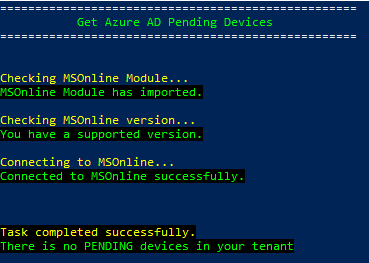
    <p>If there is no pending devices in AAD tenant:<br />
<img src="/assets/images/Get-AADPendingDevices-1.png" alt="Screenshot showing Get-AADPendingDevices script" title="Get-AADPendingDevices" /></p>
  </li>
  <li>
    <p>CSV file output: <br />
<img src="/assets/images/Get-AADPendingDevices-2.png" alt="Screenshot showing Get-AADPendingDevices script CSV output" title="Get-AADPendingDevices" /></p>
  </li>
  <li>
    <p>Excel output: <br />
<img src="/assets/images/Get-AADPendingDevices-2.png" alt="Screenshot showing Get-AADPendingDevices script Excel output" title="Get-AADPendingDevices" /></p>
  </li>
</ul>

<p>You can always download the updated version directly from the link: <a href="https://github.com/mzmaili/AADPendingDevices">https://github.com/mzmaili/AADPendingDevices</a></p>]]></content><author><name>Mohammad Zmaili</name></author><category term="Device Registration" /><category term="Device Registration" /><category term="Join Types" /><category term="Entra ID Devices" /><category term="Device Management" /><category term="Identity and Security" /><summary type="html"><![CDATA[Do you have pending devices in your Azure AD tenant? If so, then this article is definitely for you 🙂]]></summary></entry><entry><title type="html">Hybrid Azure AD Device Registration</title><link href="https://zmaili.net/device%20registration/Hybrid-Azure-AD-Device-Registration/" rel="alternate" type="text/html" title="Hybrid Azure AD Device Registration" /><published>2019-10-19T16:00:00+00:00</published><updated>2019-10-19T16:00:00+00:00</updated><id>https://zmaili.net/device%20registration/Hybrid-Azure-AD-Device-Registration</id><content type="html" xml:base="https://zmaili.net/device%20registration/Hybrid-Azure-AD-Device-Registration/"><![CDATA[<p>In this article, I am discussing device registration for hybrid Azure AD joined devices.
First of all, let’s go through device registration steps:</p>
<ol>
  <li>The device tries to retrieve tenant id and domain name from registry [HKEY_LOCAL_MACHINE\SOFTWARE\Microsoft\Windows\CurrentVersion\CDJ\AAD].</li>
  <li>If it fails, the device communicates with Local AD (config partition) to get the tenant’s information form Service Connection Point (SCP). You can get SCP information using <a href="https://aka.ms/DSRegTool">Device Registration Troubleshooter Tool</a> PowerShell.</li>
  <li>Then, the device tries to communicate with Microsoft resources under the system context. You can verify if the device can access Microsoft resources under the system account by using the <a href="https://learn.microsoft.com/en-us/samples/azure-samples/testdeviceregconnectivity/testdeviceregconnectivity/">Test Device Registration Connectivity</a> script.</li>
  <li>The device authenticates against either Azure AD or federation service (e.g. ADFS).</li>
  <li>The device registration process finishes.</li>
</ol>

<h3 id="managed-vs-federated">Managed vs Federated</h3>
<p>In this section, let’s discuss device registration high level steps for Managed and Federated domains</p>
<h4 id="managed-domain">Managed Domain</h4>
<ul>
  <li>The device generates a <strong>certificate</strong>. This certificate will be stored under the computer object in local AD.</li>
  <li>AAD Connect application syncs all computer objects that have the ‘<strong>user certificate</strong>’ attribute populated to Azure AD in the next synchronization cycle. (the device will show in Azure AD as a hybrid Azure AD device, and the</li>
  <li>The device <strong>communicates</strong> with Azure AD once again to register itself.</li>
  <li>Azure AD <strong>compares</strong> the device’s certificate with what it has in Azure AD.</li>
  <li>If the device certificates <ins>matched</ins>, the device will be connected to Azure AD as Hybrid Azure AD joined, hence “Registered” value of Azure AD device object will be populated.</li>
</ul>

<h4 id="federated-domain">Federated Domain</h4>
<ul>
  <li>The device communicates with Azure AD to register itself using the SCP.</li>
  <li>Azure AD redirects the device to authenticate against the federation server.</li>
  <li>The device takes a token from the federation server and pass it to Azure AD to register itself.</li>
  <li>Device registration finishes, and the device present in Azure AD devices section.</li>
</ul>

<h3 id="things-to-know">Things to know:</h3>
<ul>
  <li>Device registration in federated domains is faster than managed domains since it does not wait the sync cycle.</li>
  <li>Identity provider should support the following (they are already supported in ADFS):
    <ul>
      <li>WS-Trust protocol: for windows current versions.</li>
      <li>WIAORMULTIAUTHN claim : for down-level devices.</li>
    </ul>
  </li>
  <li>Starting from 1803, if device registration fails with federated domain, it will try to complete the registration using the synced computer/device.</li>
  <li>1703 or earlier, if the organization requires access to the internet via an outbound proxy, Web Proxy Auto-Discovery (WPAD) must be implemented.</li>
  <li>Starting from 1709, WPAD can be implemented via GPO.</li>
  <li>To verify if the device is able to access Microsoft resources under the system account to register itself, you can use <a href="https://learn.microsoft.com/en-us/samples/azure-samples/testdeviceregconnectivity/testdeviceregconnectivity/">Test Device Registration Connectivity</a> script.</li>
  <li>Windows 10 devices registered under the machine context.</li>
  <li>Windows down-level registered under the user context.</li>
  <li>Hybrid Azure AD join is currently not supported:
    <ul>
      <li>If your environment consists of a single AD forest synchronizing identity data to more than one Azure AD tenant.</li>
      <li>Windows current devices with non-persistent virtual desktop infrastructure (VDI).</li>
      <li>For FIPS-compliant TPM.</li>
      <li>For Windows Server running the Domain Controller (DC) rule.</li>
      <li>On Windows down-level devices when using credential roaming or user profile roaming</li>
    </ul>
  </li>
  <li>When using “Sysprep” tool with pre-Windows 10 1809 images for installation, make sure that the image is not from a device that is already registered with Azure AD as Hybrid Azure AD join.</li>
  <li>If you are relying on a Virtual Machine (VM) snapshot to create additional VMs, make sure that snapshot is not from a VM that is already registered with Azure AD as Hybrid Azure AD join.</li>
  <li>Dual state being avoided starting from:
    <ul>
      <li>Windows 10 1809 release</li>
      <li>Windows 10 1803 release with KB4489894</li>
    </ul>
  </li>
</ul>

<h3 id="important-scripts">Important scripts:</h3>
<p><a href="https://aka.ms/DSRegTool">Device Registration SCP Tool</a></p>

<p><a href="https://learn.microsoft.com/en-us/samples/azure-samples/testdeviceregconnectivity/testdeviceregconnectivity/">Test Device Registration Connectivity</a></p>

<p><a href="https://github.com/mzmaili/HybridDevicesHealthChecker">Hybrid Azure AD Joined Devices Health Checker</a></p>]]></content><author><name>Mohammad Zmaili</name></author><category term="Device Registration" /><category term="Device Registration" /><category term="Join Types" /><category term="Entra ID Devices" /><category term="Device Management" /><category term="Identity and Security" /><summary type="html"><![CDATA[In this article, I am discussing device registration for hybrid Azure AD joined devices. First of all, let’s go through device registration steps: The device tries to retrieve tenant id and domain name from registry [HKEY_LOCAL_MACHINE\SOFTWARE\Microsoft\Windows\CurrentVersion\CDJ\AAD]. If it fails, the device communicates with Local AD (config partition) to get the tenant’s information form Service Connection Point (SCP). You can get SCP information using Device Registration Troubleshooter Tool PowerShell. Then, the device tries to communicate with Microsoft resources under the system context. You can verify if the device can access Microsoft resources under the system account by using the Test Device Registration Connectivity script. The device authenticates against either Azure AD or federation service (e.g. ADFS). The device registration process finishes.]]></summary></entry><entry><title type="html">Configure Hybrid Azure AD joined with non-persistent VDI</title><link href="https://zmaili.net/device%20registration/Configure-Hybrid-Azure-AD-joined-with-non-persistent-VDI/" rel="alternate" type="text/html" title="Configure Hybrid Azure AD joined with non-persistent VDI" /><published>2019-10-07T16:00:00+00:00</published><updated>2019-10-07T16:00:00+00:00</updated><id>https://zmaili.net/device%20registration/Configure-Hybrid-Azure-AD-joined-with-non-persistent-VDI</id><content type="html" xml:base="https://zmaili.net/device%20registration/Configure-Hybrid-Azure-AD-joined-with-non-persistent-VDI/"><![CDATA[<p>When configuring Hybrid Azure AD joined devices with non-persistent Virtual Desktop Infrastructure (VDI) we face the following challenges:</p>
<ul>
  <li>Non-persistent VDI machine created when a user signs in, and it destroyed once the user signs out.</li>
  <li>Non-persistent VDI machine connects to Azure AD as hybrid Azure AD joined device when a user signs into it, and if auto hybrid Azure AD join configured correctly.</li>
  <li>Users should sign into a hybrid Azure AD device to acquire Azure PRT which is responsible for single sign on (SSO), and which allows users to pass device-based conditional access policy that requires the user to sign in form hybrid Azure AD device.</li>
  <li>If a non-persistent VDI machine took time to connect itself to Azure AD during the user’s login, the user will sign into a non-hybrid device, and he will not be able to acquire Azure PRT. Hence, SSO will not work for him, and he will be blocked by any device-based conditional access policy that requires the access from hybrid device.</li>
  <li>Azure AD device object remains exist, although the non-persistent VDI machine has destroyed and does not exist anymore after the user signs out from it. This ends up with a huge number of stale device objects in Azure AD.</li>
  <li>Azure AD stale devices should be cleaned up periodically to avoid keeping unwanted objects in Azure AD tenant, and reaching the default quota limit which may cause service interruption due to running out of quota.</li>
</ul>

<p>In this article, I am demonstrating the steps to configure Hybrid Azure AD joined devices with non-persistent VDI for federated environments taking the above challenges into account.</p>

<p><strong>Before we start, Keep in mind that Hybrid Azure AD joined for non-persistent VDI (NPVDI) for federated environments requires additional considerations in order to be supported. For more information about supported scenarios, check <a href="https://docs.microsoft.com/en-us/azure/active-directory/devices/howto-device-identity-virtual-desktop-infrastructure#supported-scenarios">supported scenarios</a> document.</strong></p>

<p>Now, lets continue. Our goal is to make the user sign in successfully to a hybrid Azure AD domain joined device and acquire Azure PRT which gives him the ability to utilize single Sign-On (SSO), as well as, allows him to access Office 365 resources by passing any conditional access policy requires the access from trusted devices like hybrid Azure AD joined devices.</p>

<p>In the following steps, we will accomplish the following:</p>
<ul>
  <li>Create a GPO and attach it to VDI machines to run a batch file that executes the command “<strong>dsregcmd /join</strong>” to register the machine to Azure AD when it starts and before the user login to it. (since the user needs to login a connected machine to acquire Azure PRT).</li>
  <li>Configure the same GPO to run another batch file that executes the command “<strong>autoworkplace.exe /leave</strong>” to disconnect the machine from Azure AD when the user sign out. (since the machine destroys once the user log out). <br />
    <blockquote>
      <p>This step is only needed for down-level devices, and we do not want to run “dsregcmd /leave” command for current level OS versions.</p>
    </blockquote>
  </li>
</ul>

<h3 id="1-configure-join-batch-file">1. Configure join batch file:</h3>
<ul>
  <li>Create a batch file to be run when the user logon to the machine.</li>
  <li>Name the batch file with a meaningful name (e.g. VDIJoin.bat).</li>
  <li>Add the following command to the batch file:<br />
<strong>dsregcmd /join</strong></li>
</ul>

<h3 id="2-configure-disjoin-batch-file-this-step-is-needed-only-for-down-level-devices">2. Configure disjoin batch file (<ins>this step is needed only for down-level devices</ins>):</h3>
<ul>
  <li>Create a batch file to be run when the user log off form the machine.</li>
  <li>Name the batch file with a meaningful name (e.g. VDIDisjoin.bat).</li>
  <li>Add the following command to the batch file:<br />
<strong>autoworkplace.exe /leave</strong></li>
</ul>

<h3 id="3-configure-startup-gpo">3. Configure Startup GPO:</h3>
<ul>
  <li>Open “Group Policy Management Console” on domain controller and create a new GPO with a meaningful name (e.g. VDIHybridDevices).</li>
  <li>Edit the above created GPO, and open “Computer Configuration\Windows Settings\ Scripts (Startup/Shutdown)”.</li>
  <li>Choose <strong>Startup</strong> and add the above created batch file in first step.</li>
  <li>Open “User Configuration\Windows Settings\ Scripts (Logon/Logoff)”.</li>
  <li>If you have down-level devices, choose <strong>Logoff</strong> and add the above created batch file in second step.</li>
  <li>Link the GPO to the needed OU that contains NPVDI machines.</li>
</ul>

<p>Now, we have created the needed GPO so that the machine will be connected to AAD as hybrid Azure AD joined device once it starts, and the user will be able to get PRT and SSO will work when he signs into it as he will sign into a hybrid device.</p>

<p>The next challenge is to avoid keeping unwanted device objects in Azure AD tenant and reaching the default quota limit, you can accomplish this and automate cleaning Azure AD stale devices in an efficient way using Azure AD Device Cleanup script keeping in mind that for non-persistent VDI deployments on Windows current and down-level, you should delete devices that have <strong>ApproximateLastLogonTimestamp</strong> of older than 15 days.</p>

<p><ins><strong>Very important notes before you go:</strong></ins></p>
<ul>
  <li>Consider using a prefix for the display name (e.g. NPVDI-) for non-persistant VDI devices to make it easier when implementing cleanup strategy.</li>
  <li>Keep track your Azure AD quanta limit, specially when having large number of VDI machines. For more information, kindly visit <a href="https://docs.microsoft.com/en-us/azure/azure-resource-manager/management/azure-subscription-service-limits#active-directory-limits">the link</a>.</li>
  <li><strong>DO NOT</strong> execute dsregcmd /leave as part of shutdown/restart process of windows current devices (Windows 10, Windows Server 2016, and Windows Server 2019).</li>
  <li>For Windows down-level (Windows 7, Windows 8.1, Windows Server 2008 R2, Windows Server 2012, and Windows Server 2012 R2), the device will be connected to Azure AD as hybrid device once the user login to it and it will not use “dsregcmd /join” command.</li>
  <li>To clean Windows down-level devices from Azure AD when the user sign out, you can add “autoworkplace.exe /leave” command to the above created GPO.</li>
  <li>Internet connectivity to the following Microsoft resources under the system context should be allowed automatically once Windows 10 device starts to get it registered before the user signs in:
    <ul>
      <li>https://login.microsoftonline.com</li>
      <li>https://device.login.microsoftonline.com</li>
      <li>https://enterpriseregistration.windows.net</li>
    </ul>
  </li>
  <li>You can verify if the device can access the above Microsoft resources under the system account by using the <a href="https://learn.microsoft.com/en-us/samples/azure-samples/testdeviceregconnectivity/testdeviceregconnectivity/">Test Device Registration Connectivity</a> script.</li>
  <li>Make sure that the golden/original VDI image is not connected to Azure AD as hybrid device. So, the new VDI machines will register to Azure AD when it starts with a unique device ID.</li>
  <li>If you are relying on the System Preparation Tool (sysprep.exe) and if you are using a pre-Windows 10 1809 image for installation, make sure that image is not from a device that is already registered with Azure AD as hybrid Azure AD joined.</li>
  <li>If you are relying on a Virtual Machine (VM) snapshot to create additional VMs, make sure that snapshot is not from a VM that is already registered with Azure AD as Hybrid Azure AD join.</li>
  <li>You can use <a href="https://github.com/mzmaili/AzurePRTLoginReport">Azure PRT Login Status Report</a> script to validate Azure PRT.</li>
</ul>]]></content><author><name>Mohammad Zmaili</name></author><category term="Device Registration" /><category term="Device Registration" /><category term="Join Types" /><category term="Entra ID Devices" /><category term="Device Management" /><category term="Identity and Security" /><summary type="html"><![CDATA[When configuring Hybrid Azure AD joined devices with non-persistent Virtual Desktop Infrastructure (VDI) we face the following challenges: Non-persistent VDI machine created when a user signs in, and it destroyed once the user signs out. Non-persistent VDI machine connects to Azure AD as hybrid Azure AD joined device when a user signs into it, and if auto hybrid Azure AD join configured correctly. Users should sign into a hybrid Azure AD device to acquire Azure PRT which is responsible for single sign on (SSO), and which allows users to pass device-based conditional access policy that requires the user to sign in form hybrid Azure AD device. If a non-persistent VDI machine took time to connect itself to Azure AD during the user’s login, the user will sign into a non-hybrid device, and he will not be able to acquire Azure PRT. Hence, SSO will not work for him, and he will be blocked by any device-based conditional access policy that requires the access from hybrid device. Azure AD device object remains exist, although the non-persistent VDI machine has destroyed and does not exist anymore after the user signs out from it. This ends up with a huge number of stale device objects in Azure AD. Azure AD stale devices should be cleaned up periodically to avoid keeping unwanted objects in Azure AD tenant, and reaching the default quota limit which may cause service interruption due to running out of quota.]]></summary></entry><entry><title type="html">Azure AD devices connection types</title><link href="https://zmaili.net/device%20registration/Azure-AD-devices-connection-types/" rel="alternate" type="text/html" title="Azure AD devices connection types" /><published>2019-09-30T16:00:00+00:00</published><updated>2019-09-30T16:00:00+00:00</updated><id>https://zmaili.net/device%20registration/Azure-AD-devices-connection-types</id><content type="html" xml:base="https://zmaili.net/device%20registration/Azure-AD-devices-connection-types/"><![CDATA[<p>In a previous article I described why <a href="/device%20registration/Do-I-really-need-to-connect-my-device-to-Azure-AD/">Do I really need to connect my device to Azure AD</a>.
In this article I will describe the available types of having devices connected to Azure AD to gain the benefits of utilizing Office 365 services, and when to use each one of them.</p>

<p>We can connect devices to Azure AD using the following ways:</p>

<h3 id="azure-ad-registered">Azure AD Registered</h3>
<ul>
  <li>Used for personal devices</li>
  <li>Bring Your Own Device (BYOD)</li>
  <li>Users sign in using the local machine’s account</li>
  <li>Devices could be managed using Intune</li>
  <li>Can be used with the following Operating systems:
    <ul>
      <li>IOS</li>
      <li>MacOS</li>
      <li>Android</li>
      <li>Windows 10</li>
    </ul>
  </li>
</ul>

<h3 id="azure-ad-joined">Azure AD Joined</h3>
<ul>
  <li>Used for company owned devices</li>
  <li>Choose Your Own Device (CYOD)</li>
  <li>Used with windows 10 devices only</li>
  <li>Devices will be joined to Azure AD domain only</li>
  <li>All synced users can be able to login to the machine by default</li>
  <li>Devices could be managed using Intune</li>
</ul>

<h3 id="hybrid-azure-ad-joined">Hybrid Azure AD Joined</h3>
<ul>
  <li>Used for company owned devices</li>
  <li>Choose Your Own Device (CYOD)</li>
  <li>Once the device connected to the local domain, it will be connected automatically to Azure AD</li>
  <li>Devices could be managed by GPO, CCM and/or Intune.</li>
  <li>Used with Windows operating systems.
    <ul>
      <li>Current devices: Windows 10, Windows Server 2016, and Windows Server 2019</li>
      <li>Down-level Devices: Windows 7, Windows 8.1, Windows Server 2008 R2, Windows Server 2012, and Windows Server 2012 R2</li>
    </ul>
  </li>
</ul>

<blockquote>
  <p>Note: you can connect your device to Azure AD as long as you have Azure AD license even the free one, and you do not need to pay any extra license.</p>
</blockquote>]]></content><author><name>Mohammad Zmaili</name></author><category term="Device Registration" /><category term="Device Registration" /><category term="Join Types" /><category term="Entra ID Devices" /><category term="Device Management" /><category term="Identity and Security" /><summary type="html"><![CDATA[In a previous article I described why Do I really need to connect my device to Azure AD. In this article I will describe the available types of having devices connected to Azure AD to gain the benefits of utilizing Office 365 services, and when to use each one of them.]]></summary></entry></feed>