System-Preferred Authentication for First and Second Factors
Users don’t always pick the strongest credential available to them. That isn’t a training failure as much as a default-path problem. If password is familiar and easy to find, many people will keep choosing it even after you’ve rolled out passkeys or other stronger methods.
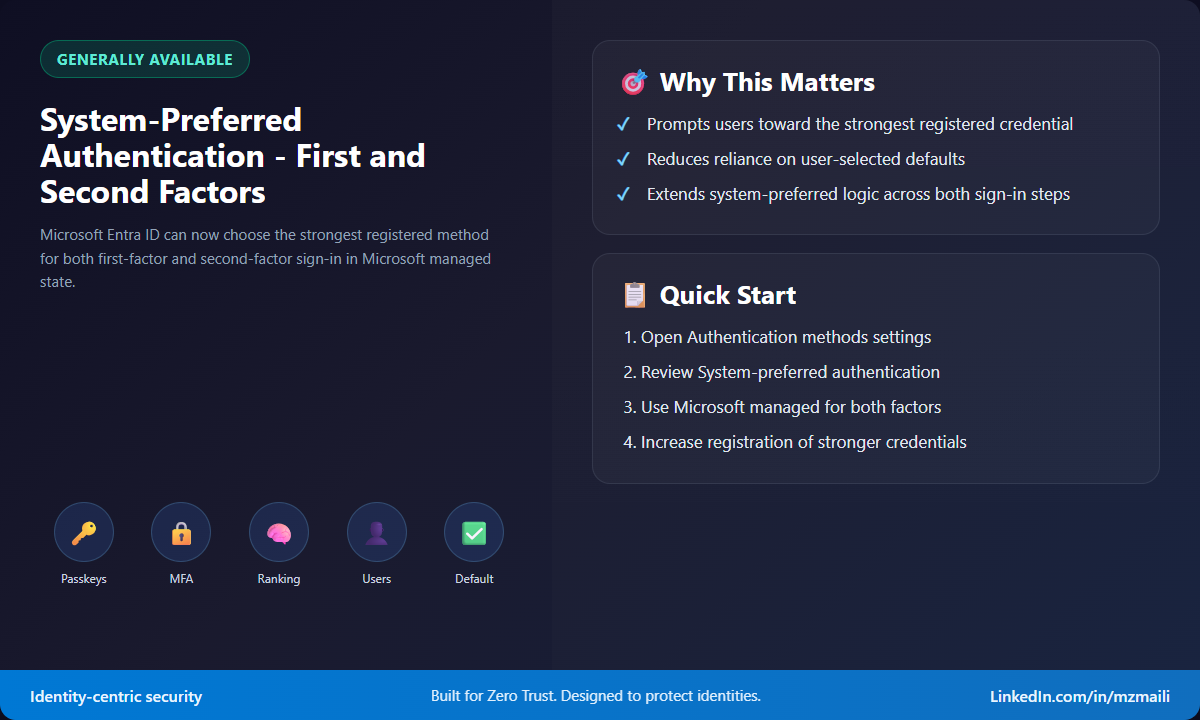
System-preferred authentication in Microsoft Entra ID is now generally available for both first-factor and second-factor authentication when the setting is in Microsoft managed state. Entra evaluates the user’s registered credentials and prompts for the highest-ranked method at each step of the sign-in flow.
What it is
System-preferred authentication changes the prompt order. Instead of relying on a user’s personal default or habit, Microsoft Entra ID looks at the methods registered for that user and presents the most secure available option.
For example, if a user has both a password and a passkey, the system can prompt for the passkey first. The user can still choose another available method, but the secure option becomes the front door instead of the alternate route.
The important GA expansion is first-factor coverage in Microsoft managed mode. Previously, system-preferred behavior was associated with the MFA step. Now, in Microsoft managed state, the same idea applies to both the initial sign-in and the second factor. In the explicitly Enabled state, the feature applies to second-factor only. Disabled means no change to sign-in logic.
Why it matters
Security teams spend a lot of effort getting stronger methods registered. The value of that work drops if users continue signing in with weaker options because those options appear first.
This is especially relevant for passkeys, certificate-based authentication, Windows Hello for Business, Authenticator passwordless sign-in, and other stronger credentials. System-preferred authentication helps turn registration into usage. It also reduces the need to convince every user to make the best manual choice every time.
How it works
Microsoft documents a ranked order that starts with Temporary Access Pass for recovery, then phishing-resistant methods such as passkeys and certificate-based authentication, followed by Microsoft Authenticator notifications, external MFA, TOTP, telephony, QR code for frontline worker scenarios, and password.
That order can evolve as the security landscape changes. Conditional Access policies and authentication strength requirements still matter; system-preferred authentication does not override them. Also note the scope: this policy targets users and groups, not devices.
There are a few operational details worth calling out. Policy changes might not apply on the very next sign-in, but they apply to subsequent sign-ins. Conditional Access is validated for second-factor authentication and authorization after authentication. And if certificate-based authentication is high in the order but a user’s device can’t complete it, the user might need to choose another sign-in method.
How to enable it
By default, system-preferred authentication is Microsoft managed for all users. To review or change it, sign in to the Microsoft Entra admin center as at least an Authentication Policy Administrator. Go to Microsoft Entra ID, then Authentication methods, then Settings. Under System-preferred authentication, choose Microsoft managed, Enabled, or Disabled, and configure included or excluded users or groups as needed.
If you want first-factor and second-factor coverage, use Microsoft managed. If you want system-preferred logic only for MFA, use Enabled. If you need to pause the behavior for a rollout issue, use Disabled or exclude a group. Excluded groups take precedence over included groups.
You can also manage the setting through Microsoft Graph by updating the authentication methods policy and the systemCredentialPreferences configuration. That route is useful when you want change control, staged deployment, or repeatable configuration across tenants.
Bottom line
This is one of those changes that looks small in the UI but changes real behavior. If you’ve invested in passkeys or other stronger credentials, system-preferred authentication helps those methods become the path users actually take.
For more information, see System-preferred authentication in Microsoft Entra ID.