B2C to External ID Migration: HSC Mode
Customer identity migrations are rarely blocked by a lack of architecture diagrams. They’re blocked by the risk of breaking sign-in for real users. If millions of customers suddenly need password resets, re-registration, or support calls, the migration has failed no matter how clean the target platform looks.
High Scale Compatibility mode, or HSC mode, is now generally available for Microsoft Entra External ID. It gives large Azure AD B2C customers a tenant-level coexistence path so applications can move toward External ID endpoints while existing B2C user credentials remain in place.
What it is
HSC mode is designed for established, high-scale Azure AD B2C environments that need to migrate to Microsoft Entra External ID without forcing a disruptive user directory migration first. In this mode, organizations can build new External ID applications, connect them to the existing B2C user base, and validate sign-in behavior before moving more apps.
The key idea is continuity. Existing users keep their credentials during coexistence, while teams rebuild or onboard applications against External ID endpoints. Microsoft’s guidance positions the standard migration path for smaller tenants, while HSC mode is intended for larger B2C tenants where user continuity and phased adoption are the priority.
This is not a casual toggle. The Learn documentation is clear that enabling HSC mode is a significant tenant-level change, and reversing it requires Microsoft support. Some advanced customization capabilities are limited in HSC mode and should be reviewed before rollout.
Why it matters
For consumer identity, the blast radius is external. A broken employee sign-in is bad. A broken customer sign-in can become a revenue, reputation, and trust problem in minutes.
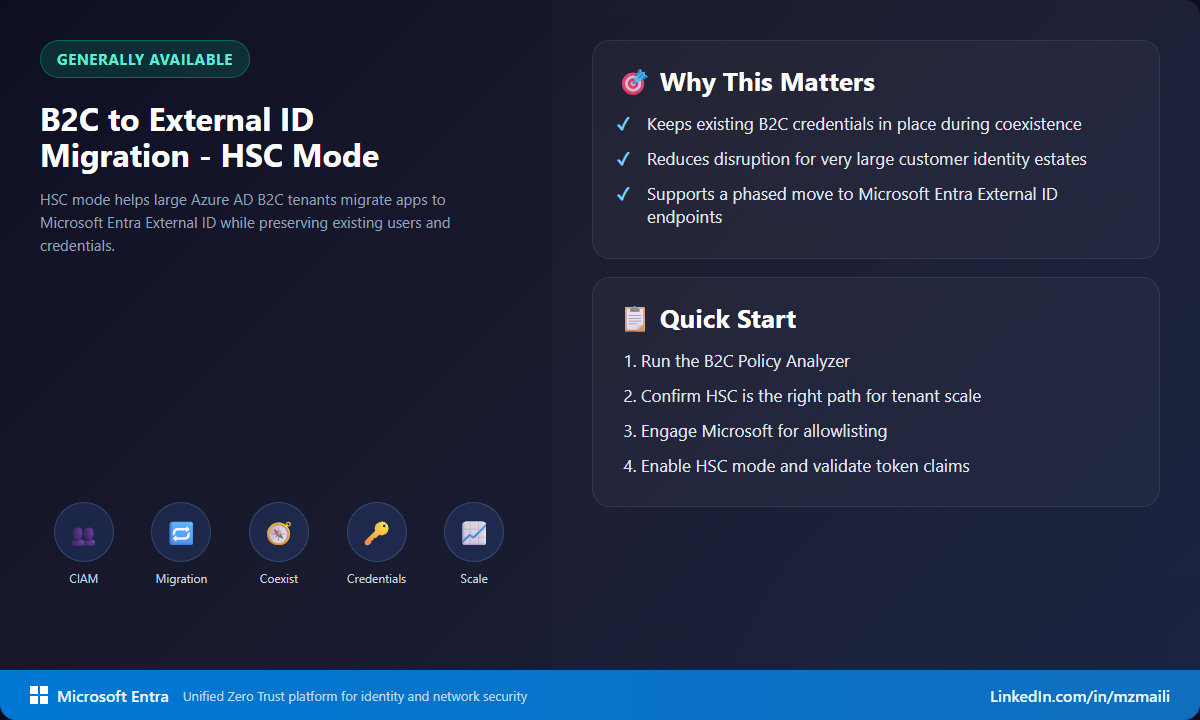
HSC mode matters because it lets teams reduce migration risk. You can validate token claims, application behavior, custom domains, user flows, and sign-up/sign-in journeys before broad adoption. You can move applications incrementally rather than betting the business on a single cutover weekend.
How to enable it
Start with planning, not the API call. If your tenant is below the scale where a standard migration works, use the standard path. For larger B2C tenants, run the B2C Policy Analyzer and review HSC mode limitations, including gaps around some social identity providers, passkeys, age gating, admin portal experience, and Conditional Access scenarios.
Before enabling, contact your Microsoft account team or open a support ticket to request allowlisting for HSC mode. That allowlisting is required before Stage 1. Also check custom attributes: every custom attribute needs a nonempty description, because the enable API syncs custom attributes into the External ID context and can fail when descriptions are missing.
Once allowlisted, enable HSC mode through Microsoft Graph by calling the beta externalIdHybridModeConfiguration endpoint under policies/authenticationFlowsPolicy. The caller needs the Policy.ReadWrite.AuthenticationFlows permission. After enablement, allow up to one hour for changes to take effect.
Next, review token claims for coexistence. Pay close attention to apps that depend on email, sub, or oid. In External ID, sub is not set to the same value as oid, so applications that assumed they matched need to be adjusted. Then register the first External ID application, configure user flows, optionally configure native authentication, custom URL domains, Azure Front Door, or custom authentication extensions, and validate end to end.
My recommendation: migrate one representative application first, inspect tokens, verify sign-in logs, test existing and new users, and only then expand.
Bottom line
HSC mode is valuable because it accepts reality: high-scale customer identity migrations need coexistence. It gives teams a safer path from Azure AD B2C to Microsoft Entra External ID without asking customers to pay the price for backend modernization.
For more information, see Enable External ID High Scale Compatibility mode.