App Deactivation: A safer pause button for risky or retired applications
Deleting an app registration is a strong move. Sometimes it is the right move, but often you need something more measured: stop the app from getting new tokens, preserve the configuration, and give the team time to investigate dependencies or suspicious behavior.
App Deactivation in Microsoft Entra ID is now generally available, and it gives application owners and admins that middle path. You can deactivate an app registration to block new access token issuance while keeping the application metadata, permissions, and configuration available for review or reactivation.
What it is
App Deactivation sets the application’s disabled state so it cannot receive new access tokens. Users cannot sign in to the application, and the application cannot access protected resources with newly issued tokens. Existing access tokens are not instantly destroyed; they remain valid until their configured lifetime expires.
The important distinction is preservation. Deactivation keeps application configuration, permissions, metadata, and the service principal object. The application remains visible in the Enterprise applications list, and you can reactivate it later if the investigation or retirement plan changes.
That makes it different from deletion. Deletion is still available, but it is not always what you want during incident response or a controlled application shutdown.
Why it matters
Security teams often need a reversible containment action. If an app looks suspicious, you may not want to remove all evidence and configuration before you understand what happened. If an app is being retired, you may want to stop new use while owners confirm whether any workloads still depend on it.
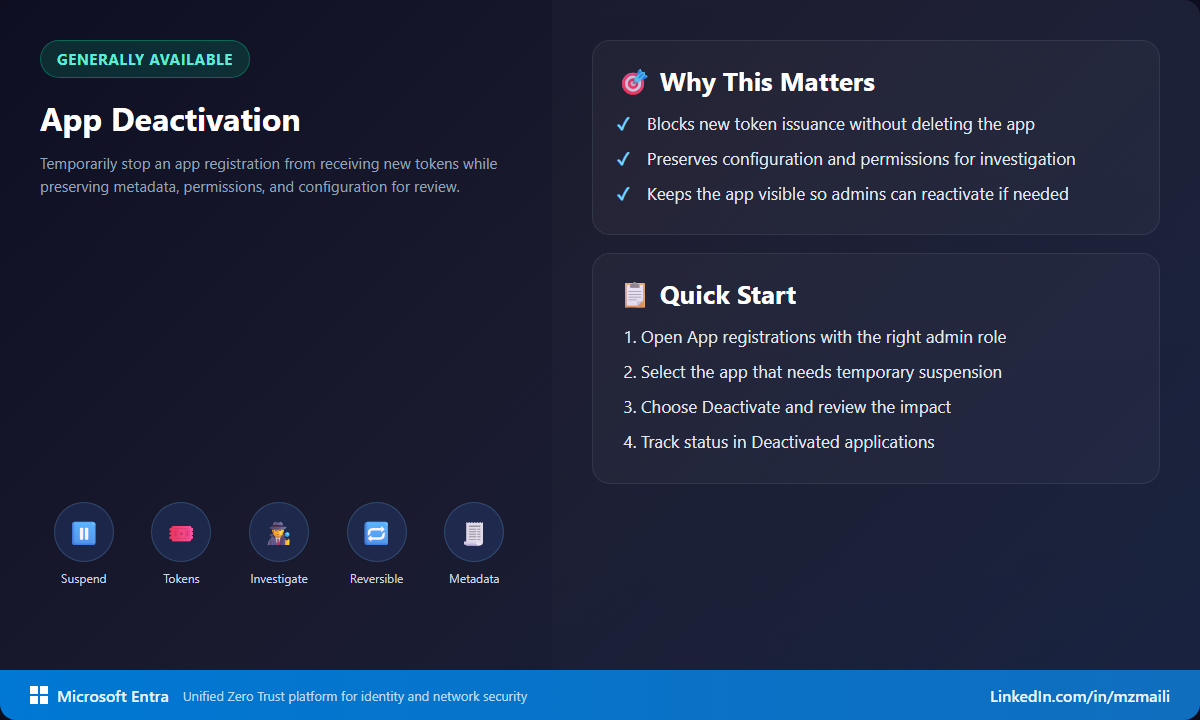
Deactivation also helps with governance. It creates a visible state that says, “this app should not be used,” without pretending the object never existed. That is useful for app rationalization, owner cleanup, and post-incident review.
There is a subtle ownership point too. Microsoft Learn notes that if an app has assigned owners, those owners appear in the deactivation pane. If you want to prevent others from reactivating the app, review and remove other owners before deactivation. That is the kind of operational detail that matters in a real containment scenario.
How to deactivate an application
You need the right permissions before you start. Microsoft Learn lists Cloud Application Administrator or Application Administrator as built-in roles that can deactivate an app. A custom role can also work if it includes microsoft.directory/applications/disablement/update. For Microsoft Graph, the relevant permissions include Application.ReadWrite.All or Application.ReadWrite.OwnedBy for owned apps.
To deactivate from the Microsoft Entra admin center:
- Sign in to the Microsoft Entra admin center as at least a Cloud Application Administrator.
- Go to App registrations.
- Find and select the app registration you want to deactivate.
- Select Deactivate on the app registration page.
- Review the impact in the Deactivate app registration pane.
- Review app owners and remove owners if you need to prevent unauthorized reactivation.
- Select Deactivate again to confirm.
- Verify that the app registration state reflects the deactivated status.
Deactivation takes effect immediately for new token issuance. Existing tokens expire based on their lifetime and any token lifetime policies in place.
How to monitor and reactivate
You can view deactivated applications from the Deactivated applications tab under App registrations. You can also check an enterprise app’s activation status under Enterprise applications > Properties.
For automation, Microsoft Learn documents Microsoft Graph beta examples using the isDisabled property on the application object. For example, setting isDisabled to true deactivates the application, and querying applications where isDisabled eq true lists deactivated apps.
One caution: deactivation is performed on the app registration, which is the application object. The deactivated state is reflected on the enterprise app, which is the service principal object. You cannot deactivate the service principal directly. You can disable sign-in for a service principal in a tenant, but that is a different control.
Bottom line
App Deactivation is a practical control because it fits how teams actually work. You can contain, investigate, document, and decide without racing into a delete-or-keep choice. For incident response and app retirement, that reversible pause button is exactly what many tenants have needed.
For more information, see Deactivate an app registration.