Passkeys on Windows Hello: Familiar user experience, phishing-resistant sign-in
A good authentication rollout is not just about cryptography. It is also about whether users understand what to do when the prompt appears. That is why passkeys on Windows Hello are interesting: the security model moves toward phishing resistance, while the user gesture feels familiar.
Passkeys on Windows Hello are now generally available for Microsoft Entra sign-in. Users can register device-bound passkeys in the local Windows Hello container and use a PIN, fingerprint, or facial recognition gesture to sign in to Microsoft Entra-protected resources.
What it is
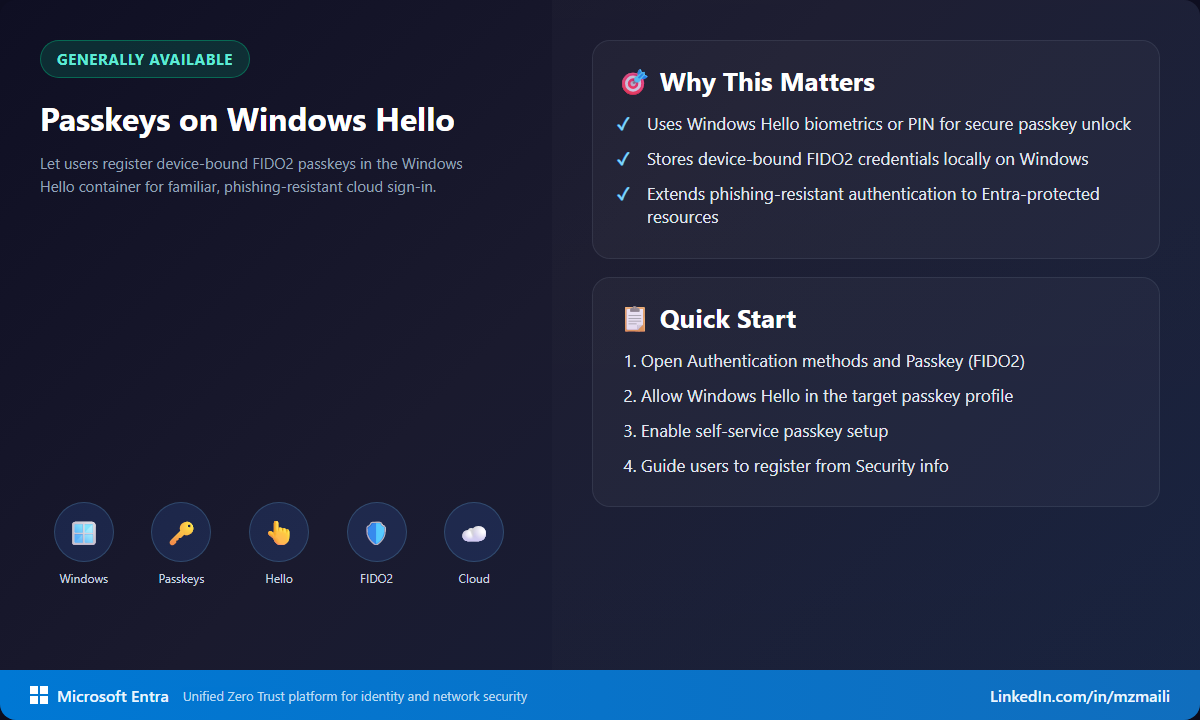
Microsoft Entra passkeys on Windows are FIDO2 passkeys stored locally in the Windows Hello container. The private key stays on the Windows device, protected by Windows Hello user verification. The result is phishing-resistant sign-in to Microsoft Entra ID without requiring the user to type or reuse a password.
A single Windows PC can store passkeys for multiple work or school accounts. That is useful for administrators, consultants, shared-device scenarios, and anyone who works across more than one Microsoft Entra tenant.
It is also important to separate this from Windows Hello for Business. Windows Hello for Business remains the recommended approach for signing in to corporate-managed, Microsoft Entra joined or registered devices. Microsoft Entra passkeys on Windows are FIDO2 credentials governed by the Microsoft Entra Authentication methods Passkey policy. They are used for cloud authentication, not device sign-in.
Why it matters
Passkeys reduce exposure to credential replay and phishing because authentication depends on a private key that is bound to the authenticator. Users still get a simple experience: approve with Windows Hello and move on.
For organizations, this lowers one of the barriers to phishing-resistant MFA. You do not have to make every user carry a separate security key to get started. Hardware security keys still have an important place, especially for privileged users and high assurance scenarios, but Windows Hello gives many users a familiar local authenticator.
The policy control matters too. These passkeys are governed by Microsoft Entra passkey profiles, so admins can decide who can register and what providers are allowed.
How to enable it
Start with the prerequisites. Users need Windows 10 or Windows 11, and the device must support Windows Hello. In Microsoft Entra, the Passkey (FIDO2) authentication method must be enabled for the target users, and self-service setup should be allowed so users can register from their security info experience.
To configure the policy:
- Sign in to the Microsoft Entra admin center as an Authentication Policy Administrator.
- Go to Protection > Authentication methods.
- Open Passkey (FIDO2).
- Enable the method for the users or groups that should register passkeys.
- Configure a passkey profile for the target users. Two settings matter: Passkey types must include Device-bound, and Enforce attestation must be cleared.
- Make sure registration is available through self-service setup.
- Have users go to Security info, add a passkey, and choose the Windows Hello option during registration.
- Test sign-in with a pilot group before expanding to broader populations.
That attestation detail is easy to miss, so it’s worth calling out. Attestation isn’t supported for Microsoft Entra passkey on Windows, so if Enforce attestation is selected in a passkey profile, registration to Windows Hello fails. One more gotcha: on a Microsoft Entra joined or registered device, a Windows Hello for Business credential may already exist for the linked account. If it does, registering a passkey on Windows for that same account fails because the credential is already present.
What users experience
A user registers a passkey from Security info. During registration, Windows prompts for Windows Hello verification, such as PIN, fingerprint, or facial recognition. After registration, the user can choose the passkey during Microsoft Entra sign-in and complete the Windows Hello gesture.
Because the passkey is device-bound, it does not sync across devices. If a user needs the same work or school account on another PC, they register a separate passkey on that device. That is a reasonable tradeoff: stronger phishing resistance and local key protection in exchange for per-device registration.
Bottom line
Passkeys on Windows Hello make phishing-resistant authentication feel less foreign. Users get a familiar gesture, admins get policy-governed FIDO2 credentials, and organizations get another practical path away from passwords and weaker MFA. I would start with users who already use Windows Hello comfortably, then expand as help desk and communications patterns mature.
For more information, see Enable Microsoft Entra passkey on Windows devices.